
Start with a room photo
Upload a clear room image to set the base context. Better lighting and framing help produce stronger preset results.
Feature
Explore interior directions quickly with one-tap style presets in Room AI Studio. Compare multiple looks side by side and choose the one that best fits your room goals.
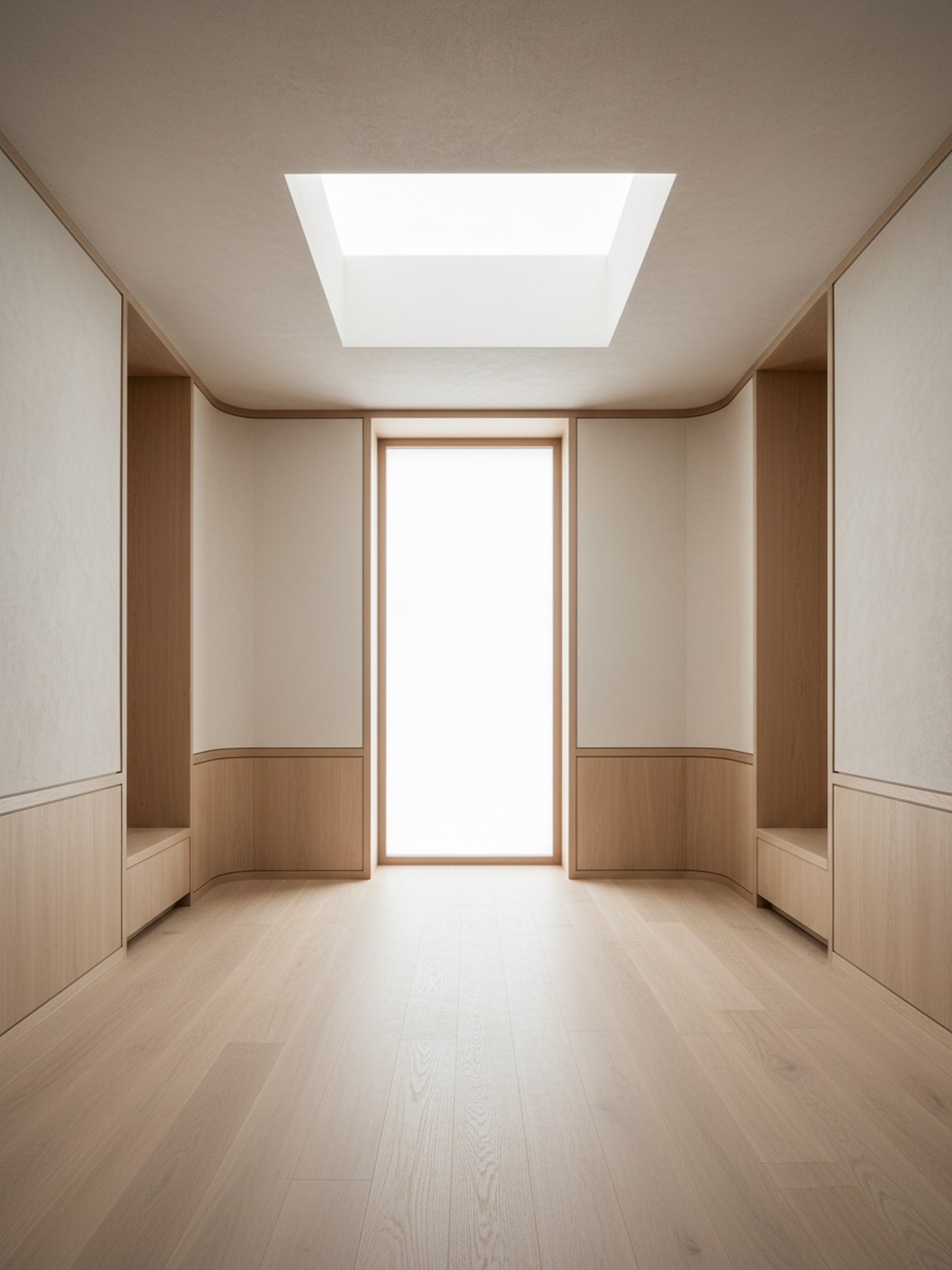
Preset direction
Curated looks that stay calm, premium, and usable.
Upload a clear room image to set the base context. Better lighting and framing help produce stronger preset results.
Try modern, minimal, cozy, and other preset directions in one tap. Generate multiple versions to compare quickly.
Keep the strongest direction, regenerate small variations, and export visuals to guide purchases or client decisions.
What you get
Best usage practices
Start with the preset that is closest to your desired mood, then regenerate two or three alternatives before deciding. Small iterations usually improve final quality.
If results feel inconsistent, retake the room photo with better framing and less clutter, then apply the same preset again for cleaner outputs.
Who this works best for
Style Presets are ideal when the main question is which visual taste fits the room before detailed layout or material decisions begin.
FAQ
These short answers explain how to use presets without overcomplicating the workflow.
Use Style Presets when the same room needs a few clear taste directions quickly. It is the fastest way to compare look and mood before deeper edits.
No. That is one of the main advantages. Presets help you move faster when you want guided visual directions without building detailed prompts from scratch.
Two or three strong directions are usually enough. That keeps the decision focused while still showing clear contrast in style.
Next
Apply curated styles in seconds and compare redesign directions with more clarity.